Class list manager for teachers
Set up each class once and every Kredits tool uses it. Import pupils from Google Classroom or paste a list, add seat numbers and support needs, and choose who shouldn't work together.
No install · sign in with Google Classroom or a teacher code
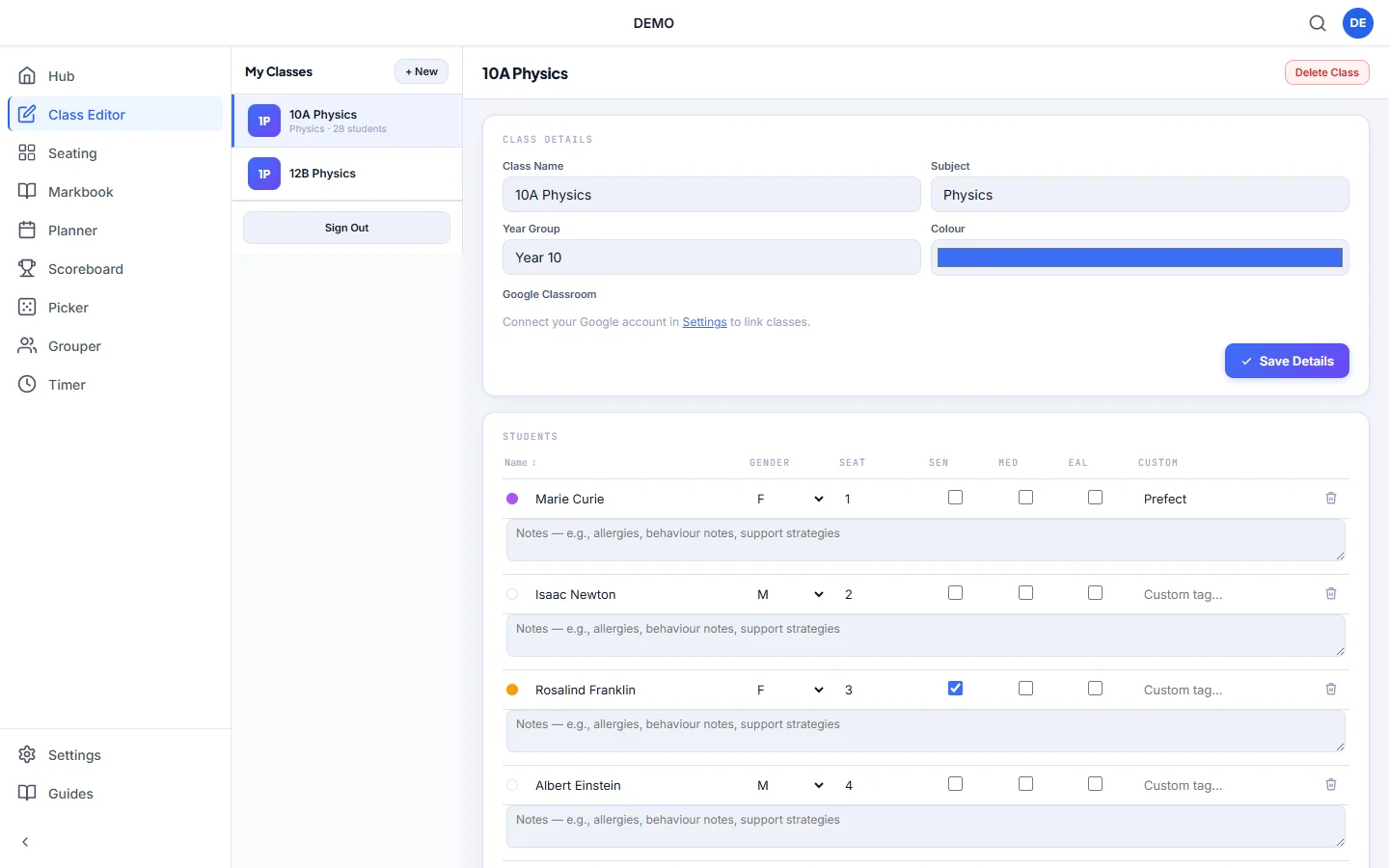
One class list for every tool
No retyping names for the seating plan, the picker and the scoreboard.
Import from Google Classroom
Link a class to its Google Classroom course and import the pupils. Syncing again adds new pupils and matches existing ones by name, so nobody is duplicated.
Or paste a list
Bulk Import takes one name per line, so you can paste straight from a spreadsheet or your school's system. You can also add pupils one at a time.
Seat and card numbers
Give each pupil a seat number. It places them on the seating plan and matches the numbered Kredits QR card on their desk.
Support needs at a glance
Tick SEN, Medical or EAL, or add your own custom tag. Each pupil gets a coloured marker, and Seating can show the codes on the plan.
Notes on each pupil
Keep a short note on each pupil, such as allergies, behaviour notes or support strategies, next to their name.
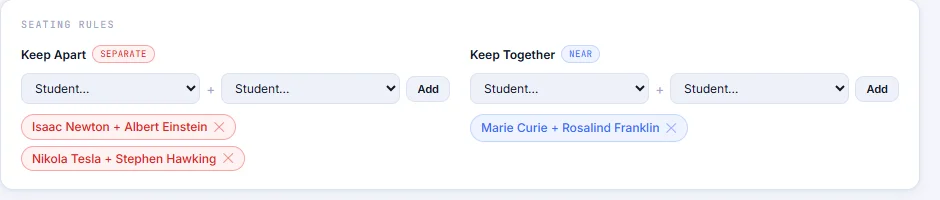
Keep Apart and Keep Together
Choose pairs of pupils who shouldn't sit or work together, or who should. Seating's Auto-Place and Grouper both follow them.
How it works
Create a class
Give it a name, subject, year group and a colour. The colour is used in Planner.
Add your pupils
Import from Google Classroom, paste a list or add pupils one by one. Fill in gender and seat numbers as you go.
Add the details that matter
Tick support needs, add notes and set Keep Apart or Keep Together pairs. Every Kredits tool now has your class.
How the rest of Kredits uses your class list
Seat numbers put pupils on the seating plan and match their QR cards on the class points scoreboard.
Keep Apart and Keep Together guide Auto-Place when it fills the seating plan, and the group generator uses the same pairs, plus gender, to balance groups.
The random name picker uses the same list, so there are no names to type in before the lesson.
Questions teachers ask
Is the class list manager free?
Yes. The Class Editor is free, and every free Kredits tool uses the classes you set up in it. There is no trial period and no card details to enter.
Do I need Google Classroom?
No. You can paste names, one per line, or add pupils one at a time. If you connect your Google account in Settings, you can also link a class to its Google Classroom course and import the pupils.
What happens if I import from Google Classroom again?
New pupils are added, and pupils who are already in the class are matched by name, so they aren't duplicated.
Does Seating use the Keep Apart rules?
Yes. When you press Auto-Place, Seating keeps Keep Apart pairs off neighbouring desks and seats Keep Together pairs side by side or one behind the other. Pupils you have already seated stay put, and if a pair can't be met it tells you, so you can move them by hand.
What pupil data does it store?
Only what you enter: names, and any seat numbers, gender, support codes, tags and notes you choose to add. How Kredits stores and protects class data is set out in the privacy policy.
More free Kredits tools
Set up a class once and use it in every tool.